Screen distance apps for Android kids in 2026
A few Android apps promise to stop your child holding the phone too close. Here's what each one actually does, and which one suits a young child.
On this page
You have seen your child inch the phone closer and closer until it is almost touching their nose, and you have decided to do something about it. Maybe a friend with an iPhone mentioned a feature that covers the screen when it gets too close. So you open the Play Store, type something like "screen distance", and a handful of apps come up. Now what?
This is a guide to the ones worth knowing about. What each actually does, where it shines, and where it falls short, so you can pick the one that fits your child instead of the one with the nicest screenshots.
What does a screen-distance app actually do?
The idea is simple. Your phone's front camera can estimate how far your face is from the screen. A screen-distance app uses that estimate to notice when the phone has crept in too close, and then it does something about it: a warning, a banner, a cover over the screen, until the phone is moved back to a comfortable distance.
The number most of these apps aim for is about 30 cm, roughly an adult's forearm. That is not a marketing figure. It is the same threshold eye doctors tend to suggest, and the same one Apple chose for its own feature. If you want the full reasoning, with the doctor-backed numbers and why little ones drift so close in the first place, that lives in our guide on safe screen distance for children.
One thing worth saying up front, because it sells these apps short if you miss it. The good ones do all of this on the device itself. The camera is used only to measure distance. Nothing is photographed, nothing is recorded, nothing leaves the phone. A distance app is not a camera trained on your child. It is a ruler that happens to use the lens.
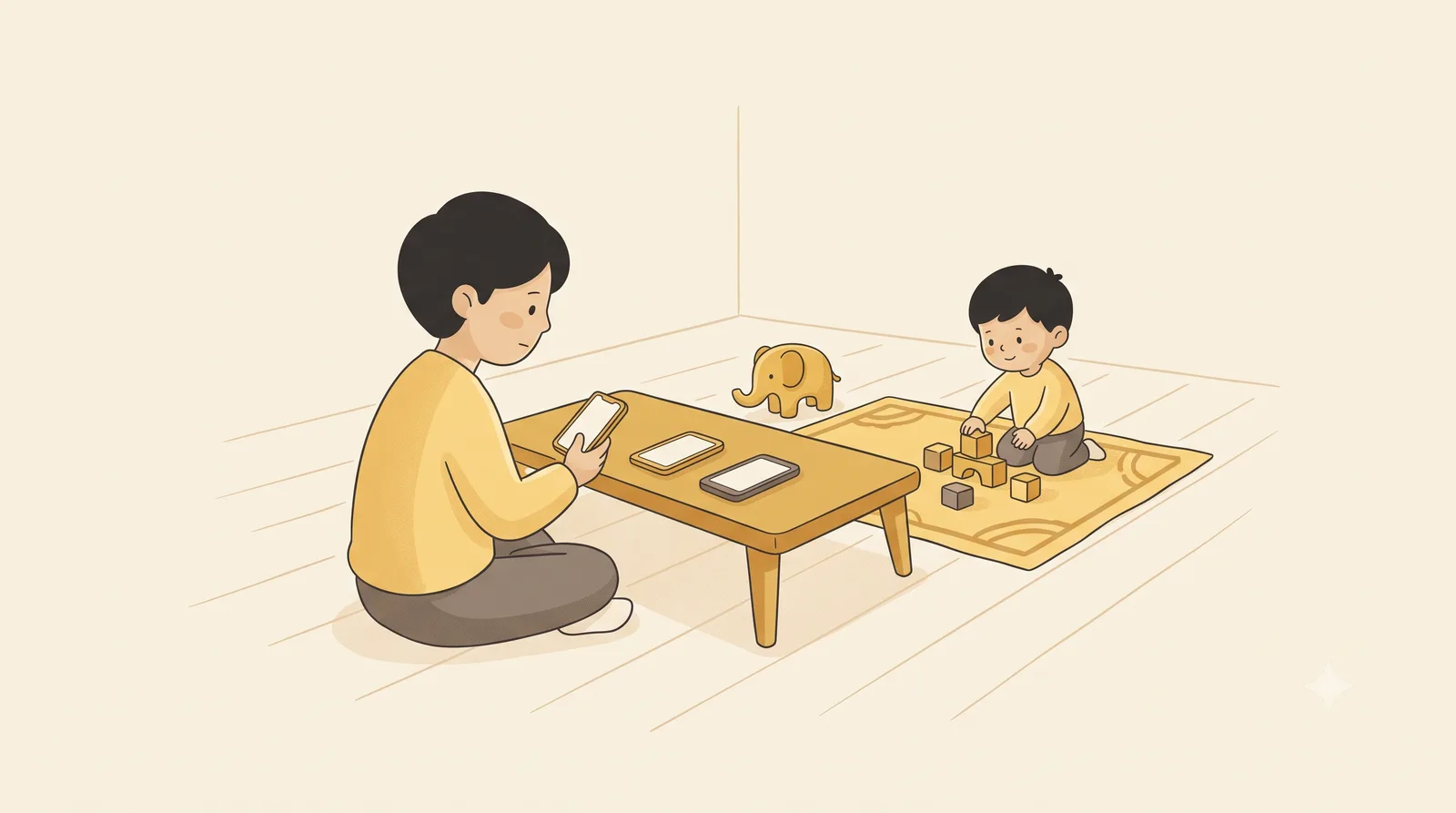
Which screen-distance apps can you get on Android right now?
There are fewer than you might expect, and they are not all the same kind of thing. Here are the ones that matter.
iVisionGuard. A capable, on-device distance app for Android. It uses the front camera to estimate the gap between your face and the screen, defaults to a 35 cm threshold, and lets you adjust that anywhere from 20 to 60 cm. When you move too close it flashes an overlay, can sound a beep, and dims the screen. The measuring all happens on the phone, and it stores no video, only single-frame distance readings, which is exactly what you want to see. The thing to weigh is who it is built for. iVisionGuard is pitched at everyone, students, office workers, heavy phone users, and children alike, so it leans on a flash-and-beep alert that assumes the person holding the phone can connect the buzz to "move back". For an adult or an older child, that works well. For a two-year-old, a sudden flash is mostly just a surprise. There is a stricter child mode, but the app's centre of gravity is general eye care rather than the early years. See iVisionGuard's own site for the current details.
Eyespro - Protect eyes. From the makers of the Kroha parental-control suite, but a separate, dedicated eye app, and the one to look at if distance is your main concern. Eyespro does a few eye things at once: it senses when the phone is held too close and nudges you to move it back, filters blue light in the evening, and dims into a night mode in the dark. You set the trigger distance yourself, by bringing the phone close until the alert fires and then tuning the sensitivity. It collects no data, and it is free with an optional paid tier. The trade-off has the same shape as iVisionGuard's. Eyespro is a general eye-comfort kit for all ages, and its distance nudge is an alert rather than something built around how a small child actually responds. Genuinely handy, especially if you also want the blue-light filter, just not made for the two-to-eight years in particular.
Guby. Our own app, and since this is our blog, you should read what follows knowing that. Guby is a free Android app built for one job and one age group: helping children roughly two to eight hold the phone at a healthy distance. The front camera estimates the distance on the device, and when the phone comes in too close a friendly owl turns up and gently covers the screen, then steps aside the instant your child moves it back. No video, no recording, no face recognition. You choose which apps Guby is active in, so it rests the rest of the time. More on where it fits, and where it doesn't, further down.
And then there is the one that is no longer here, which is worth a paragraph of its own.
Samsung Safety Screen, the cautionary tale. Back in 2016, Samsung built almost exactly this. A free app that used the front camera and, when the phone got too close, covered the screen with a friendly animation until the child moved back. Sound familiar? It should. Samsung had the right instinct years before most people were worried about it: a young child responds to a picture, not a paragraph. Then they walked away. The app was pulled from the Play Store in August 2017, last updated in 2016, and built for a version of Android that phones have long since left behind. An app like that, running in the background all day to keep checking, also tended to sit heavily on the battery, and there was no one left to fix it. Nearly a decade on, it still hasn't come back. The good idea survived. The app did not, and that gap, a maintained, child-first distance app for Android, is a fair bit of why the others on this list exist at all.
How do they differ for a young child?
Here is where the choice actually gets made, and it has very little to do with feature lists.
Think about what the app does at the moment your child is too close. iVisionGuard flashes an overlay and can beep. Eyespro nudges you with an alert of its own. Apple, on the iPhone side, shows a worded alert. All of those assume the person holding the phone can read the message, or at least connect the flash or the beep to "do something".
A three-year-old can do neither. They cannot read "move farther away", and a sudden beep or flash is just as likely to confuse or upset them as to teach them anything. This is the quiet problem at the heart of most distance tools. They were designed with a literate user in mind, and then pointed at a toddler.
The thing that works for the very young is a picture they understand without being taught. The screen they were lost in is gently covered by a character, and the only way to bring it back is to move the phone away. No words to decode, no rule to remember. Move it back, the video returns. That is a cause and effect a two-year-old can grasp in a single afternoon. Samsung understood this in 2016, and it is the principle Guby is built on now.
What should you look for before installing one?
If you only skim one section, make it this. A distance app for a child is worth judging on five things.
- It works on the device. The camera should measure distance and nothing else. No images saved, nothing uploaded. Check that the app says so plainly, because a tool pointed at your child's face has to earn that trust.
- The warning suits the age. For a child who can read, a banner or a worded alert is fine. For a child who can't, you want something visual: a cover, a character, a clear "the screen is gone until you move back".
- You can choose where it runs. An app that runs on every screen, all day, is heavier on the battery and more annoying for everyone. Being able to switch it on only for, say, video apps keeps it light and keeps the peace.
- There is a parent lock. Settings should sit behind a PIN or the phone's own lock, so the protection can't be switched off by the very person it is meant to help.
- It is still being looked after. Samsung Safety Screen is the lesson here. An app that estimates distance from a live camera has to keep up with new phones and new Android versions, or it quietly stops working. Check the last-updated date before you commit.
So which one should you pick?
Honestly, it depends on the child and on what else you want.
If your child is older, say nine and up, or if you want a distance reminder for your own eyes too, iVisionGuard is a sensible, private choice, and its adjustable range suits an adult or a teenager well. If you mainly want blue-light filtering with a gentle distance nudge rolled in, Eyespro covers that ground. And if what you really want is broad parental control, app limits, schedules, location, with eye protection as one piece of it, the Kroha suite from the same team bundles it all together.
But if your child is in that two-to-eight window, and the thing you actually want is for them to stop pressing the phone to their face, the deciding factor is the one from a few paragraphs up: a small child needs a signal they understand without reading it. That is what Guby was built to do, and it is why we keep it free during early access and let you pick the handful of apps it minds rather than running everywhere. It does one narrow job for one age group, and it tries to do that well.
A note in the same honest spirit. Guby deliberately does not block uninstalling itself, because that needs the kind of heavy device-admin permission we don't think belongs on a young child's phone. A determined eight-year-old can remove it. We made our peace with that, because the alternative is worse. If hard, lock-it-down control is what you are after, a full parental-control suite is the more honest fit than any distance app.
And whichever you choose, treat it as a nudge, not a fix. The phone propped on a stand a little further back does a surprising amount of the work on its own, no app required, as we cover in the simplest fix of all. If you also want to ease off the total amount of screen time for the littlest ones, we gathered some realistic, guilt-free ideas in our screen time guide for toddlers.
If the whole reason you are here is that a friend showed you Apple's Screen Distance and you wanted the Android version, we wrote a piece just on that: Apple Screen Distance and what Android parents can use instead.
Found this useful?
Send it to a parent who’d want it.
Related reading
Apple Screen Distance: the Android version for kids
iPhones can warn when a child holds the screen too close. Most Android phones can't on their own, so here's what fills the gap.
screen distance · children's eyes · Android apps
The healthy-screen-habits checklist for kids
Seven small habits that protect young eyes, from arm's length to outdoor light to the screen-free wind-down before bed. A checklist you can actually keep.
children's eyes · screen time · screen distance